
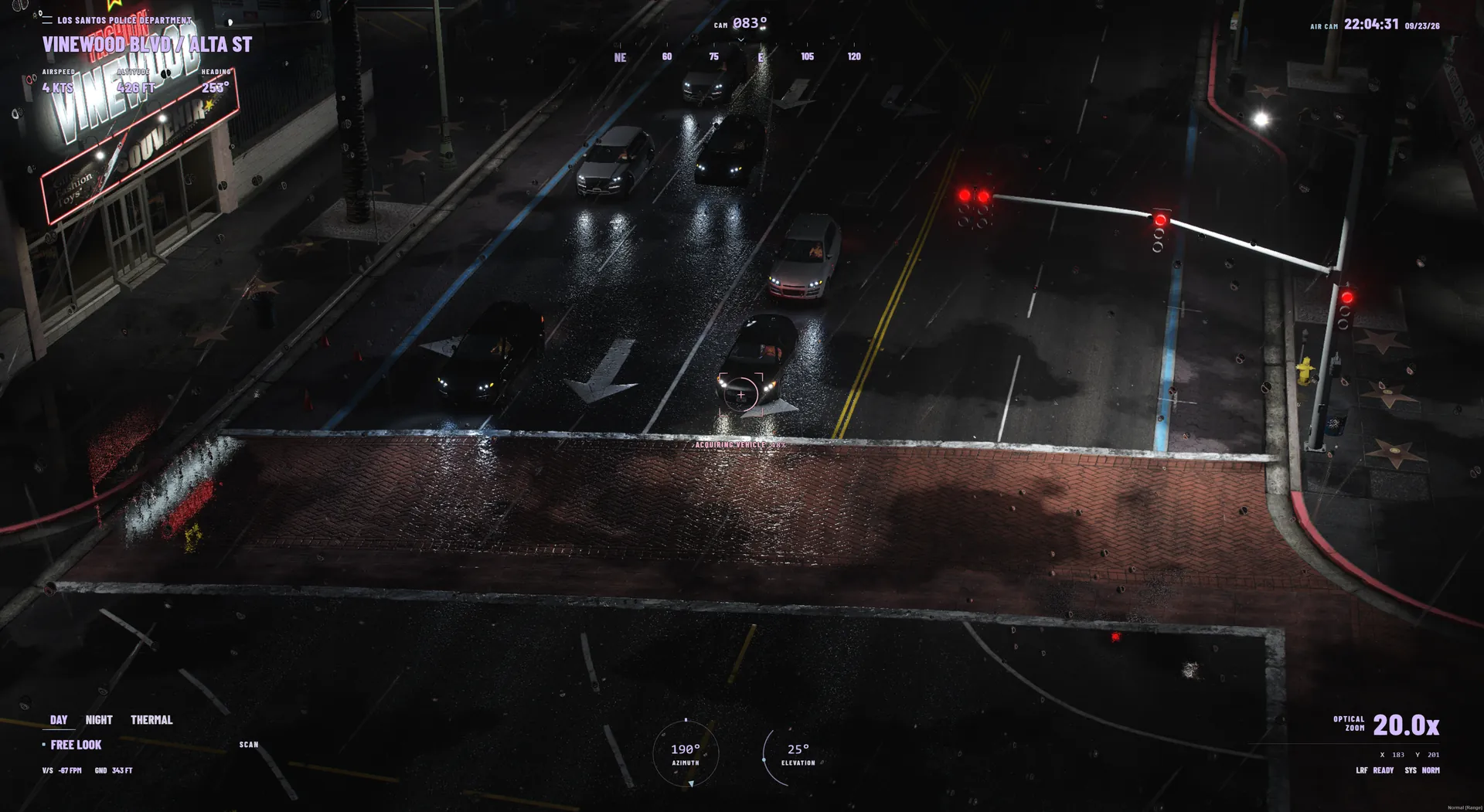
Before you start
You need a FiveM server with OneSync enabled, a copy of Cortex PolCam, and cortex-lib. PolCam 1.0.2 requires Cortex Lib 2.2.1 for shared settings, notifications, and presentation. Cortex Lib is free on Tebex.
cortex-hud and nearest-postal are optional. The camera can run without either. If you use them, start them before PolCam.
Add the resource
Keep the resource folder name cortex-polcam, with a hyphen.
Upgrading from an older cortex_polcam copy? Stop it and replace its folder with cortex-polcam. Update server.cfg, resource dependencies, and any exports['cortex-polcam'] calls in your integrations. Never run both copies. Install the matching Cortex Lib so shared presentation uses the new name. HUD positions do not transfer, so reapply them with /hudedit. The polcam_ command names are unchanged.
- Place
cortex-libandcortex-polcamin your server's resources directory. - Open PolCam's
config.luaand review the settings before starting the resource. - Add the following lines to
server.cfgin this order, after any optional integrations you use. - Restart your development server and check its console for resource startup errors.
ensure cortex-lib
ensure cortex-polcamChoose helicopters and seats
Edit these entries in config.lua to match your installed helicopter models. The defaults allow polmav and maverick, with the pilot and three passenger seats. Seat -1 is the pilot seat.
Access is controlled by models and seats. There is no framework job or ACE restriction by default; do not assume the resource limits camera access to a police job.
Config.AllowedHelicopters = { "polmav", "maverick" }
Config.AllowedSeats = { -1, 0, 1, 2 }Optional postal overlay
Postal integration is disabled by default. Install and start nearest-postal first, then check that the resource name and postal data filename match your installation before enabling it.
Config.Postal = {
    Enabled = true,
    ExportResource = "nearest-postal",
    PostalFile = "ocrp-postals.json"
}Check your first session
Join the server, enter a configured helicopter in an allowed seat, and press E to toggle the camera. If your player has remapped the action, use the binding shown in FiveM settings.
- Confirm the camera opens and closes without leaving the HUD or controls stuck.
- Check vision modes and spotlight controls in a safe test flight.
- If you enabled an optional integration, check its overlay separately.
- For a crew setup, test camera hand-off with a second player before using it on a live server.
If the camera does not open
Check that cortex-lib started successfully before cortex-polcam. Confirm the exact resource folder name, helicopter model, allowed seat, and the player's current key binding.
For a missing postal overlay, check Config.Postal.Enabled, the integration's start order, resource name, and data filename. Include the resource version, relevant configuration, and console error when asking for help.