
Open Cortex Settings
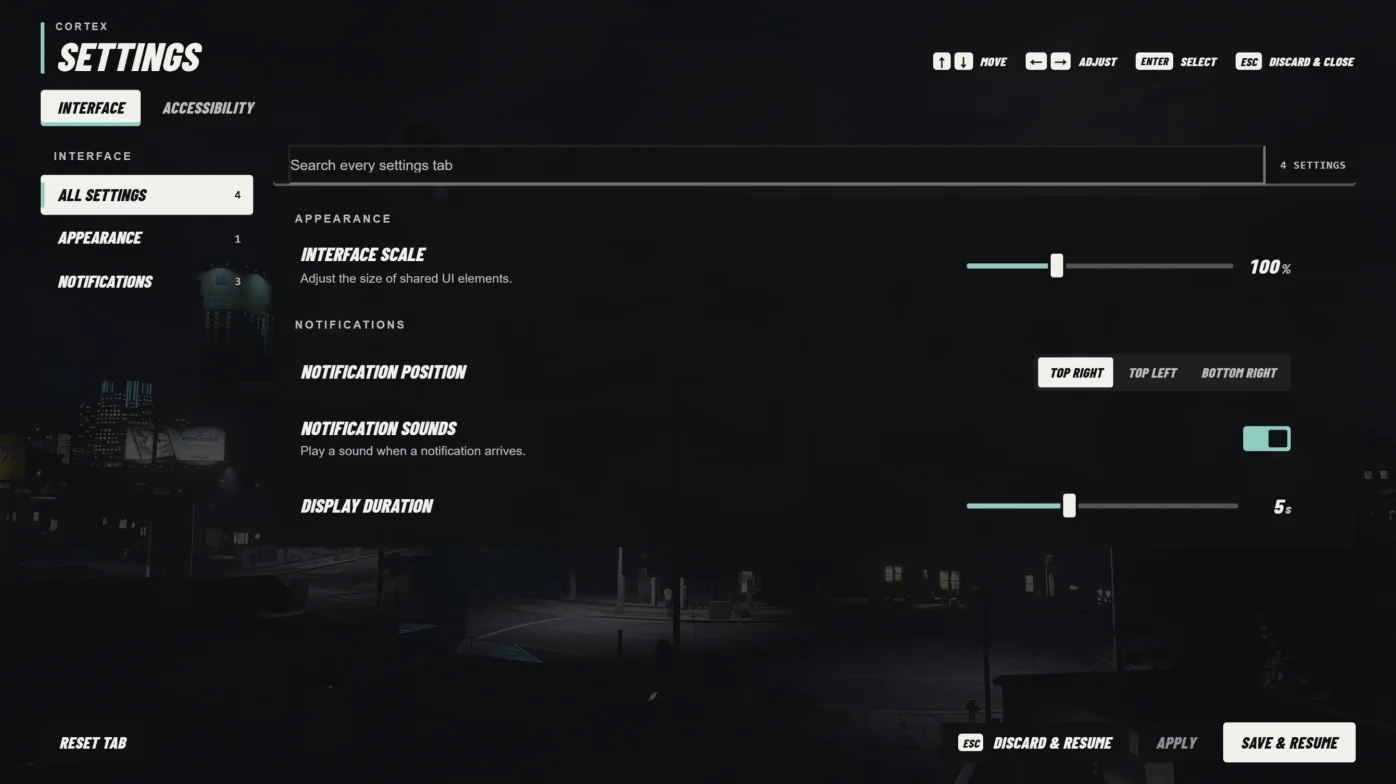
Enter /cortexsettings in chat. There is no default key for it. Settings open over a blurred view of the game, with a tab for the library and one for each compatible script.
A script only gets a tab if it registers one. Use the search field to find a setting across all tabs.
Settings will not open while the GTA pause menu or another focused interface is open. Close that first.
Apply, save, or discard
Many changes preview immediately. They are not kept until you apply or save them.
Escape closes an open dropdown first. Pressing it again closes settings and discards unsaved changes.
| Button | Result |
|---|---|
| APPLY | Saves changes and keeps the menu open. Available once something has changed. |
| SAVE & RESUME | Saves changes and closes the menu. |
| DISCARD & RESUME | Restores the values from when the menu opened, or from your last Apply, then closes. |
Notification preferences
The Cortex tab controls default notification behaviour. A script can set its own sound or position for a specific notification, so these defaults do not override every message.
| Setting | Default | Options |
|---|---|---|
| Notification sounds | On | On or off for default notification audio |
| Sound preset | MP Idle Kick | 13 GTA sounds. Preview plays the selected sound. |
| Notification Position | Top Right | Top Right, Top Left, Top Center, Bottom Right, Bottom Left, Bottom Center |
Overlay appearance and placement
The Dynamic UI tab sets a shared look for participating Cortex overlays, such as chat, the HUD, and the police camera.
Avoid overlapping overlays lets supported overlays move around occupied screen areas. Chat, notifications, progress, and fixed instruments keep their place. Notifications and progress never shift after they appear. Automatic placement never overwrites your saved positions.
If the screen is too crowded, some overlap can still happen. These controls cannot move third-party interfaces that do not participate.
| Setting | Default | Options |
|---|---|---|
| Shared accent | Mint | Mint, Blue, Lavender, Amber, Paper |
| Surface opacity | 92 | 65 to 100 |
| Motion | System preference | System preference, Reduced, Full |
| Avoid overlapping overlays | On | On or off |
| Resource name: independent appearance | Off | One switch per participating resource. On restores that resource's own appearance settings. |
Change key bindings
Cortex Lib has no key binding editor of its own. Each script registers its controls with FiveM, and you change them in GTA's native key binding menu. This includes PolCam's camera controls.
Saved FiveM bindings take priority over a script's default keys. Reinstalling or updating the library does not reset them.
On-screen interaction prompts show the key a script expects. They display controls; the script itself handles the key press.
If something looks wrong
Most problems come from unsaved changes, a script without a settings tab, or another interface holding focus.
| Problem | What to try |
|---|---|
| A change did not stick | Use APPLY or SAVE & RESUME. Escape and DISCARD & RESUME restore earlier values. |
| A script has no settings tab | Ask the server owner whether the script supports Cortex Settings and started correctly. |
| An overlay is in an unexpected place | Check Dynamic UI, the script's own options, and GTA's safe zone setting. |
| Settings will not open | Close the GTA pause menu, chat, or any other open interface, then try /cortexsettings again. |