
Before you start
Cortex Chat 1.0.0 needs Cortex Lib 2.2.1 or later. Keep its folder named cortex-lib. Cortex Chat will not start without it.
OneSync must be enabled. The manifest declares it as a dependency, and the server uses it for vehicle and proximity checks. No framework or database is required.
Replace your current chat
Cortex Chat replaces the stock chat resource. Running two chat resources causes duplicate input, duplicate messages, or both.
Resources that rely on stock chat features may need changes. HTML templates, chat:addTemplate, stock chat modes, registerMessageHook, and exports['chat'] are not supported. Messages sent with chat:addMessage and args keep working.
- Back up your current chat resource and its configuration.
- Remove ensure chat from
server.cfg, along with any other chat replacement. - Check grouped starts as well. A line that starts a whole folder group can still start the stock chat.
Add the resource
Keep the resource folder named cortex-chat. No frontend build or package install is needed.
- Copy the
cortex-chatfolder into your server's resources directory. - Review
config.luaand server/permissions_config.luabefore the first start. - Add the lines below to
server.cfgso Cortex Lib starts first. - Stop the previous chat resource, then restart the server.
ensure cortex-lib
ensure cortex-chatGrant /dv to staff
/dv deletes a vehicle, so the server checks every request. Providers are configured in server/permissions_config.lua, which only the server loads. Nothing on the client can grant access.
The default Mode = 'auto' accepts any of the grants below. It does not assign groups or edit your permissions. Restart cortex-chat after editing the file.
vMenu's standard permission file grants vMenu.VehicleOptions.All to everyone. With that file in place, every player can use /dv in auto mode. To restrict deletion separately, pin Mode = 'ace' as shown in the next section.
add_ace group.admin cortex.chat.dv allow
# Only if the player is not already in your admin group:
# add_principal identifier.license:YOUR_STAFF_LICENSE group.admin| Source | Server-side grant | Availability |
|---|---|---|
| Vanilla ACE | cortex.chat.dv (Config.Dv.Ace) or command.dv | No framework required |
| vMenu-style ACEs | vMenu.VehicleOptions.Delete, vMenu.VehicleOptions.All, or vMenu.Everything | Reads ACEs directly; vMenu need not be running |
| Cortex Admin | cortex-admin.vehicle or cortex-admin.all | cortex-admin must be started |
| QBCore | admin or god ACE | qb-core must be started |
| Qbox | admin or god ACE | qbx_core must be started |
| ESX | Player group admin or superadmin | es_extended must be started and the player loaded |
| Custom provider | Your server export returns true | Disabled until configured |
Restrict or block /dv
Set Mode to ace, vmenu, cortex-admin, qbcore, qbox, esx, or custom to use one system only. A pinned mode has no fallback. For Chat's own ACE alone, use ace mode with an empty AdditionalAces list.
To block a player or group across every provider, grant the block marker cortex.chat.blockDv. Never grant it globally. If your server grants broad cortex or cortex.chat permissions, set a different BlockAce.
If QBCore or Qbox is started together with ESX, auto mode denies the framework path and logs a message. Pin a mode in that case. To turn off this resource's /dv entirely, set Config.Dv.Enabled = false in config.lua.
txAdmin roles are not imported. Discord role bridges and other ACL resources can grant cortex.chat.dv instead.
Mode = 'ace',
AdditionalAces = {},Connect another permission system
For a system without ACEs, write a small adapter resource that exports a check. Cortex Chat calls it with (source, 'vehicle.delete'). It must return a boolean right away, with no Wait, HTTP request, or database await. Only true grants access.
Then set Custom.Enabled = true, your adapter's resource name, and the export name in server/permissions_config.lua. Start the adapter before cortex-chat.
exports('CanDeleteVehicle', function(source, action)
    if action ~= 'vehicle.delete' then return false end
    return IsPlayerAceAllowed(source, 'myserver.vehicle.delete') == true
end)Check a player's access
Run cortexchat_dvcheck followed by a player's server ID in the server console. It prints the mode and the provider that granted access, or the reason for denial. Players cannot run it.
Every deletion is also checked for range, routing bucket, occupants, and cooldown. /dv removes the world entity only. Garage or ownership records are untouched, so a persistence resource may respawn saved vehicles.
cortexchat_dvcheck 12Check your first session
Restart cortex-chat and test with real clients before going live.
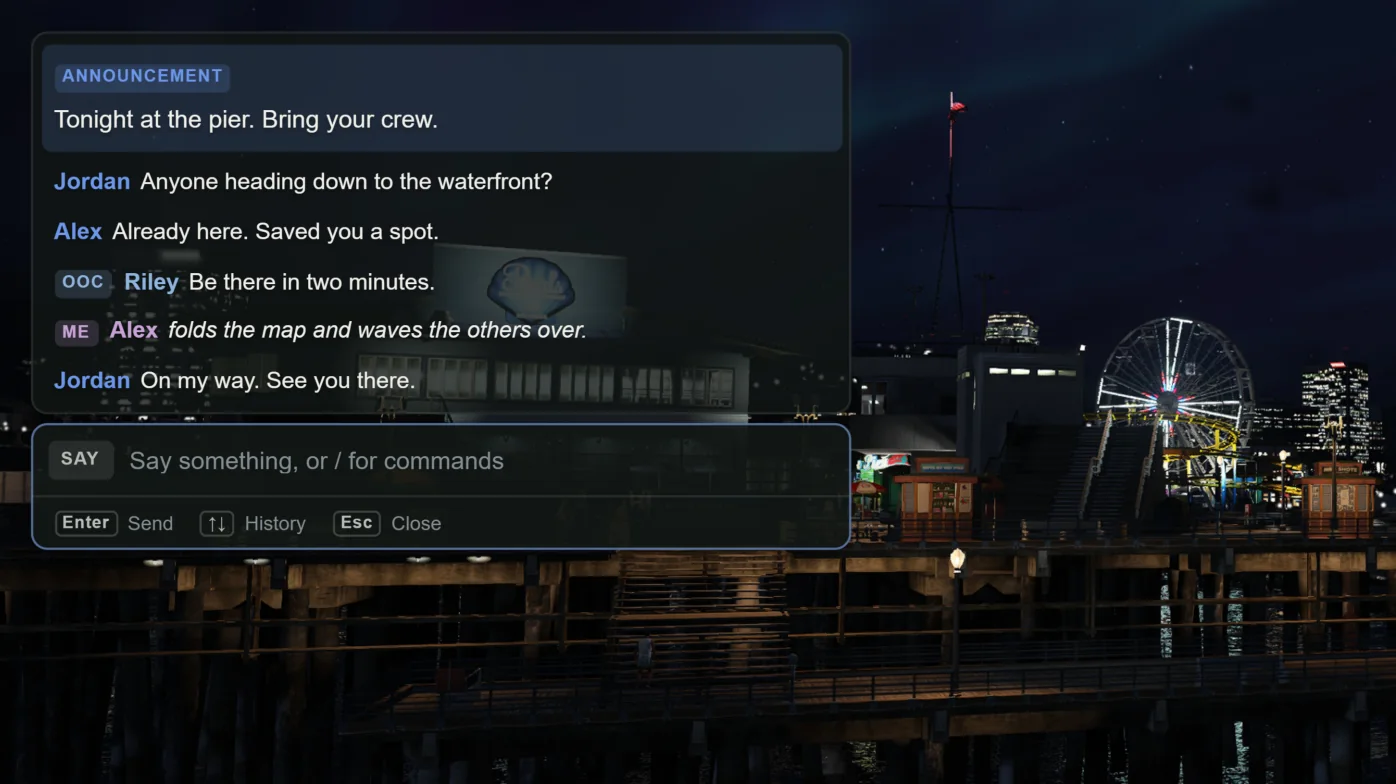
- Open chat with T, send a message, and close it with Escape a few times. Controls should never stay stuck.
- Open /cortexsettings, go to Chat, change position and font, then reconnect and confirm they persist.
- With two clients, test normal chat, /me, /ooc, and /rolldice at close and long range.
- Send several messages quickly to confirm the flood lock, then test /dv with a staff and a non-staff player.
Troubleshooting
Chat does not appear: check both folder names, the Cortex Lib version, the start order, and errors in F8 or the server console.
Messages or input appear twice: stop the stock chat or other replacement and remove duplicate command registrations.
Permission denied on /dv: run test_ace for the player's principal and cortex.chat.dv, check group membership, then run cortexchat_dvcheck.
When asking for help, include the Cortex Chat and Cortex Lib versions, server artifact, framework, steps to reproduce, and relevant errors. Redact identifiers and do not send your full server configuration.