
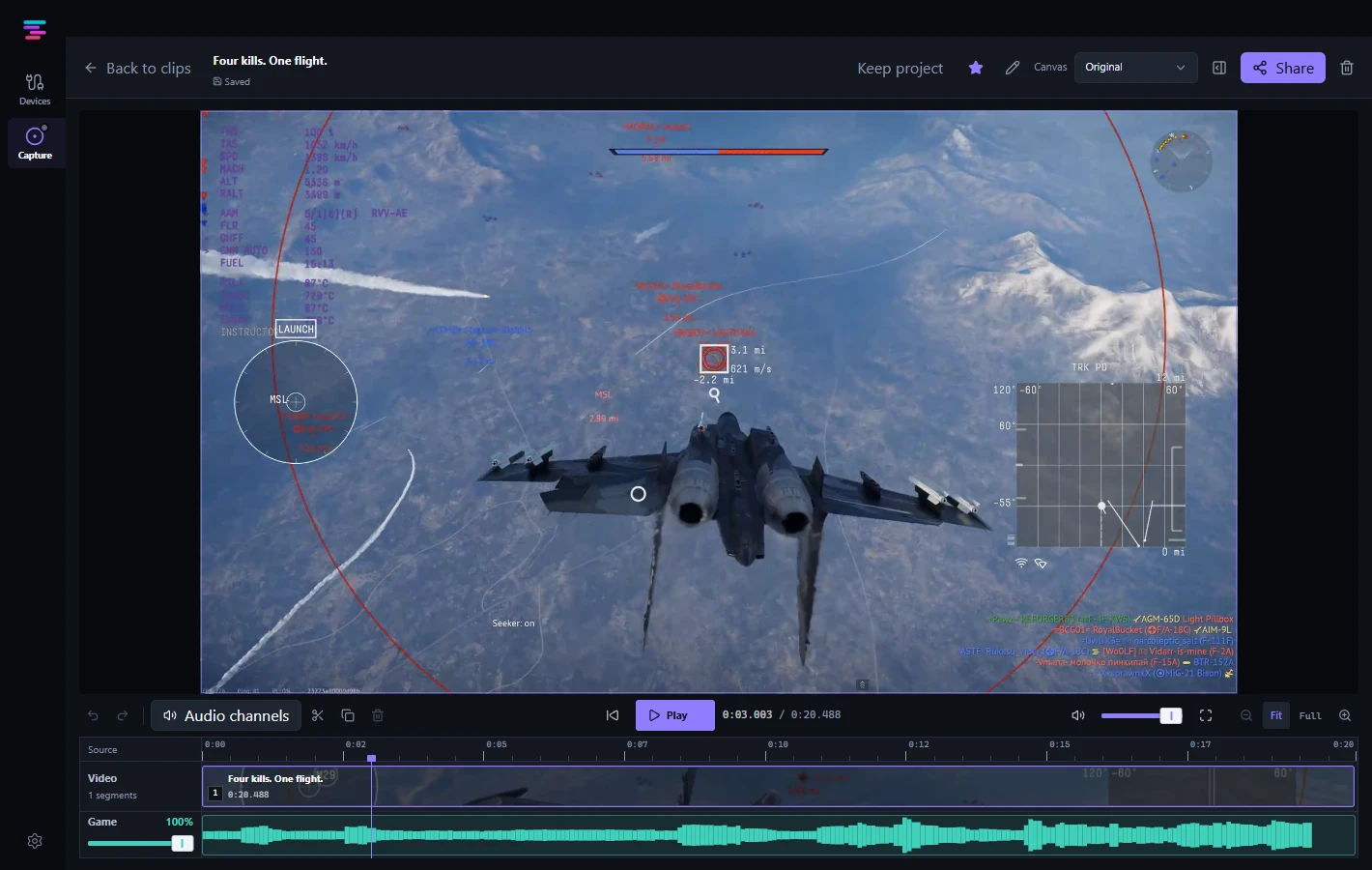
Start with the Windows app
Get Switchboard from its product page and install it on Windows. Open the app and choose the source you want to capture.
Save a replay
Replay needs to be running before the moment you want to keep.
- Choose your capture source and turn on Replay.
- Check the save shortcut in replay settings.
- After the moment happens, use that shortcut to save a replay.
- Find the saved recording in the clip library and open it for editing.
Trim and check the audio
Set the start and end on the timeline to keep the part you want. Play the selected range before exporting.
When a recording contains separate game and microphone tracks, adjust their levels independently. Separate track controls depend on what the recording contains.
Prepare a file to share
Open the Share clip dialog and choose the original size or a 10, 25, or 50 MB target. Select Prepare clip and wait for the file to finish. Drag the finished file into Discord or another app.
Open the exported copy once to check its picture, audio, and duration before sending it.
Get help with a recording
Include your Switchboard version, capture source, and what you expected to happen. For audio problems, mention which tracks were recorded and whether the problem is in playback, the export, or both.