
Choose local storage or Google Drive
Sentry is a free, open-source Windows x64 app. Download its installer from the public GitHub release. The installer is currently unsigned. This guide covers the storage-map app, not the older Sentry backup-plan application.
Choose This PC only during onboarding to use the local map without an account. The demo drive is a separate sample library, not your Google account. Sample entries cannot be downloaded, but files you upload to the demo can be pulled back down.
Map drives and folders
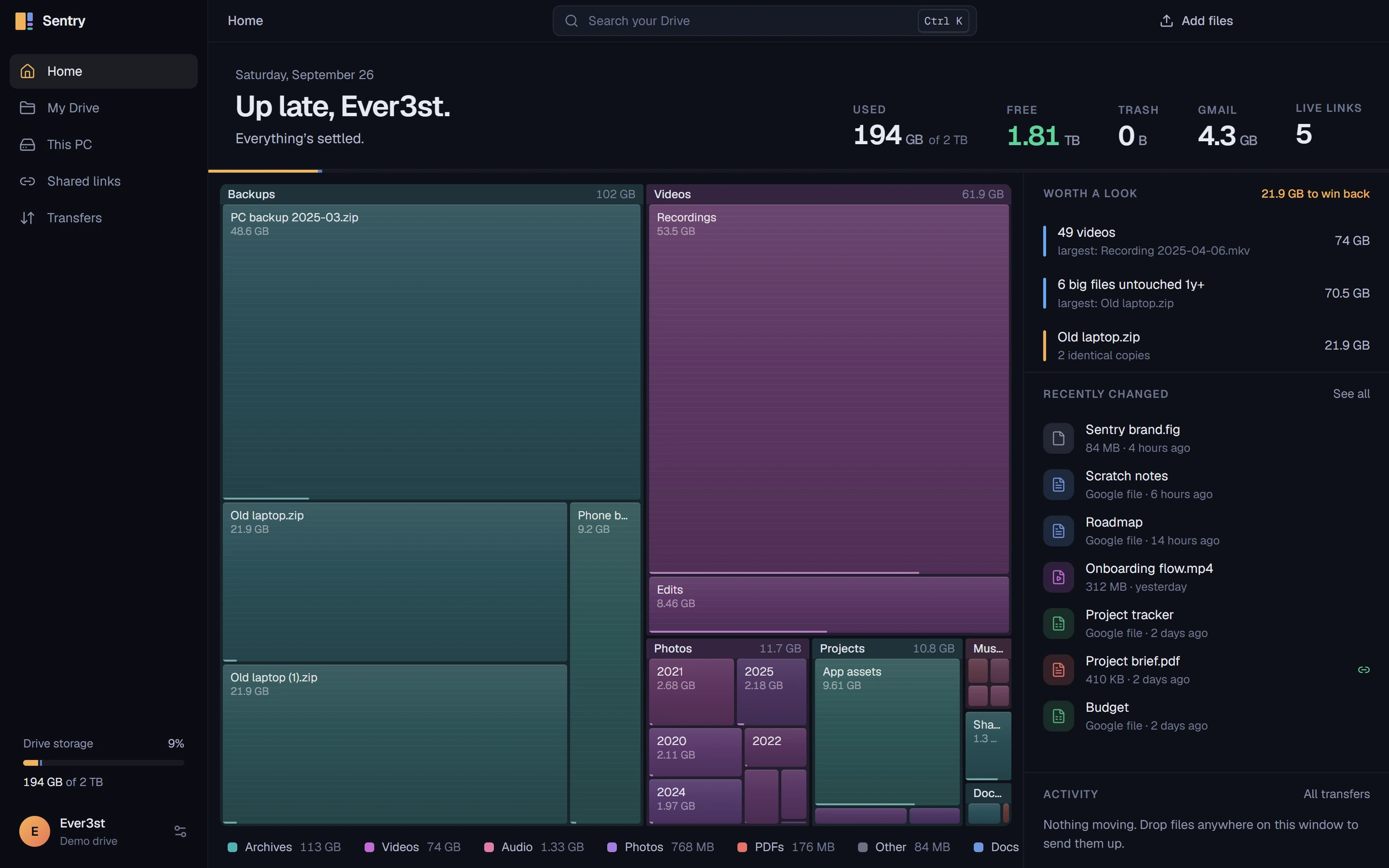
Open This PC and use Drives & folders to choose what to scan. Larger rectangles represent more space; open a folder to look inside it. The map reflects the completed scan, so rescan after making changes outside Sentry.
Clearable suggestions are advisory. You can move selected items to the Windows Recycle Bin after confirmation. Scanning alone does not remove or upload files.
- Select individual drives or choose Select all drives. Use Add folder for a specific location.
- Choose Scan selected and wait for the map, or use Stop to cancel the scan.
- Use All locations to switch between the combined map and one scanned root.
- If a drive is unavailable, reconnect or unlock it and scan again. Results from the other locations remain usable.
Connect Google Drive
Google Drive is optional. Current releases require your own Google Cloud Desktop app OAuth client with the Drive API enabled. Sentry does not ship a shared OAuth client. Importing the configuration does not sign you in. If your consent screen is in testing mode, your account must be an allowed test user.
- In onboarding or Settings → Drive & account, choose Import Google client JSON and select the downloaded Desktop app client file.
- Choose Continue with Google during onboarding, or Connect Google Drive from the demo account settings.
- Complete consent in the browser, then return to Sentry and confirm the account and files shown.
- If access expires or is revoked, use the sign-in prompt to reconnect.
Upload and pull files back down
Open My Drive and drop files into the destination folder or use its upload action. Follow each job in Transfers and wait for completion before relying on the uploaded copy. Uploads are explicit; Sentry does not continuously sync or watch your folders.
Use Pull on a stored file to download it. Sentry avoids overwriting an existing destination. Google documents export to their corresponding Office formats; an export can fail if Google's export limits are exceeded.
For a first connection, try a small file you can replace, download it again, and open the copy. A successful sign-in alone does not confirm that a transfer finished.
Review shared access
Use the share dialog to create or manage a public link. Anyone with that link may be able to access the file under the permission you selected. Review the file and permission before passing the link on.
Review shared items in Sentry and remove a public permission when it is no longer needed. If you trash a Drive file by mistake, use Google Drive to recover it; Sentry does not provide a restore-from-trash screen.
When something does not finish
For a transfer problem, keep the original and check the failed job in Transfers before retrying. For a map problem, check that the drive is still connected and readable. Include the Sentry version, operation, and displayed error when asking for help; do not include OAuth files or account tokens.