
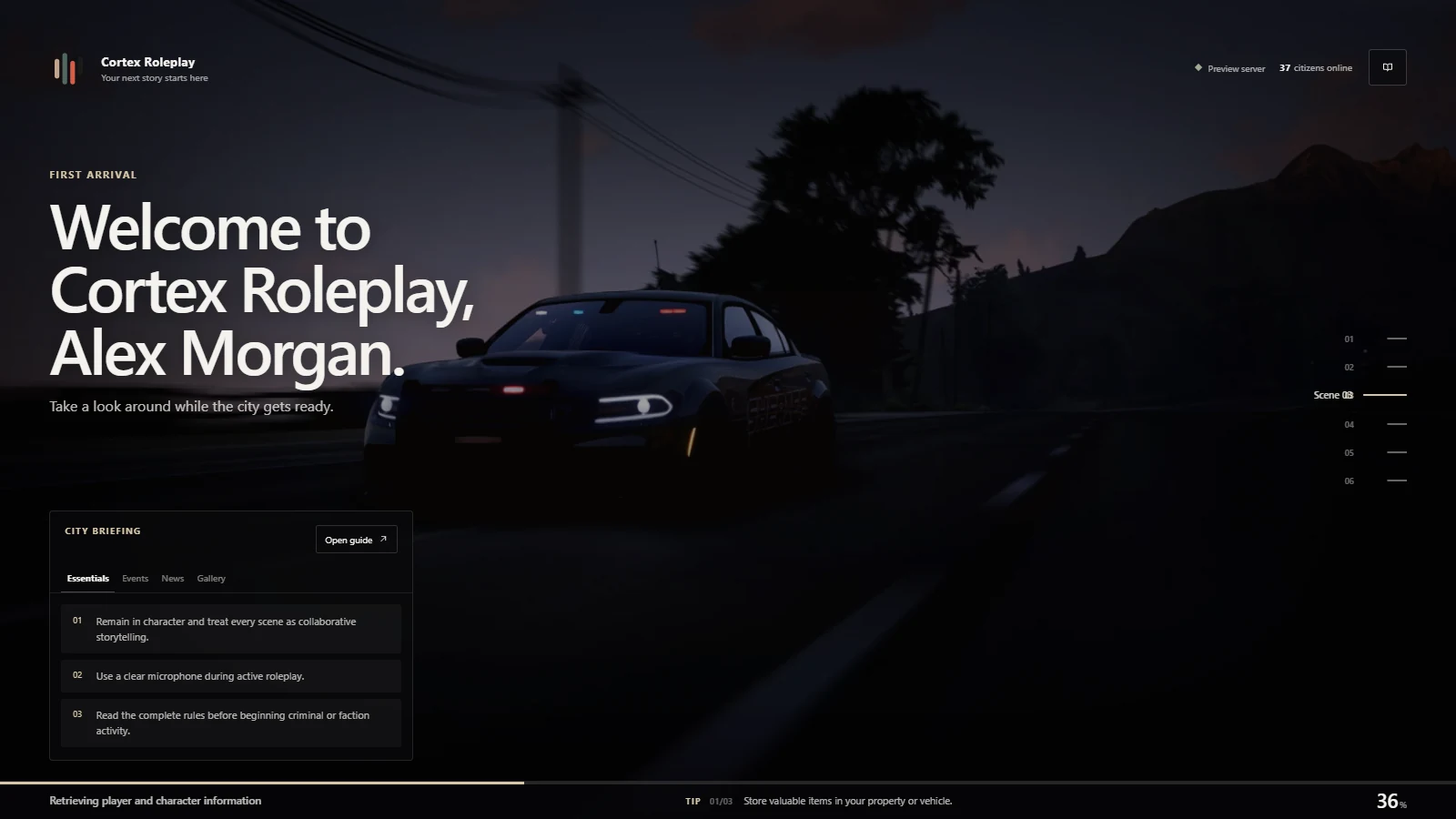
Start the resource
These instructions cover the supplied Cortex Loading resource. Check the product page for release availability. A packaged copy includes dist/index.html; players do not need Bun, and this resource does not require cortex-lib.
- Place the
cortex-loadingfolder in your server's resources directory and keep that folder name. - Confirm dist/index.html exists. Disable any competing loading-screen resource.
- Add the ensure line below to
server.cfg. - Review
config.luabefore allowing players to join. Replace example server names, links,rules, and events with your own content.
ensure cortex-loadingSet your server identity
Append overrides to the bottom of the shipped config.lua instead of replacing the whole file. Config-only changes do not need a rebuild. Restart the resource and reconnect to see them.
The example below uses a name and monogram without requiring a logo file. To use a logo, put it in dist/assets/, set Config.Brand.Logo to its assets/ path, and enable ShowLogo. Never put credentials in this shared configuration.
Config.Brand.Name = "Your Server"
Config.Brand.Monogram = "YS"
Config.Brand.ShowLogo = false
Config.Theme.UiScale = 0.85
Config.Modules.Website.Enabled = false
Config.Modules.ServerStatus.Enabled = falseAdd an image or video scene
Place runtime media under dist/assets/. Paths in config.lua are relative to dist, so dist/assets/scenes/my-scene.webp becomes assets/scenes/my-scene.webp. Match filename case on Linux servers.
For multiple scenes, use distinct IDs and non-overlapping progress ranges covering 0 to 100. Video scenes use Type = 'video' with local Source, Poster, and Fallback paths. Keep video muted when using a separate music track, and test the codec in FiveM; the resource does not transcode it.
Config.Scenes.Shuffle = false
Config.Scenes.Items = {
    {
        Id = "main", Type = "image",
        Source = "assets/scenes/my-scene.webp",
        From = 0, To = 100, Motion = "none",
        FocalPoint = { 50, 50 }, OverlayStrength = 0.5
    }
}
Config.Performance.PosterFallback = "assets/scenes/my-scene.webp"Write your City Guide
Config.Guide owns the rules, tips, news, events, changelog, gallery, links, staff, and credits. Config.Briefing controls the compact on-screen briefing, while Config.TipTicker uses the guide's tips.
Replace example key bindings and community claims before publishing your server. They are sample text, not integrations with your other resources. Add runtime gallery images explicitly to Config.Guide.Gallery.Items.
Config.Modules.CityGuide.Enabled = true
Config.Briefing.Enabled = true
Config.TipTicker.Enabled = true
Config.Guide.Order = { "rules", "tips", "news", "gallery" }
Config.Guide.Rules.Items = { "Respect other players." }
Config.Guide.Tips.Items = { "Ask a staff member if you need help." }
Config.Guide.News.Items = {}
Config.Guide.Events.Items = {}Choose music and effects
Use audio you have permission to distribute. For a runtime installation, place it under dist/assets/music/ and replace Config.Music.Tracks with its File, Title, Artist, and optional Start offset. Both Config.Music.Enabled and Config.Modules.Music.Enabled must be on for music.
Browser autoplay can be blocked until a player interacts. Test play/pause and volume rather than assuming silence means the file is missing. To turn music off, disable both music switches.
Effects have independent controls. To remove snowfall and its toggle, disable Config.Effects.Snow.Enabled and Config.Effects.Snow.ShowToggle. Reduced-motion and low-performance settings may suppress effects that are otherwise enabled.
Test arrival and spawn
Test a cold join, reconnect, missing media, blocked autoplay, and your actual spawn flow. Reaching 100% download progress is not the same as the player being ready.
If you use a custom spawn selector, emit the client event below when the player is ready. Check the completion hold and fade settings under Config.Shutdown if the loading screen closes too early or remains visible.
TriggerEvent('cortex-loadingscreen:playerLoaded')Keep custom media during updates
Back up config.lua and your custom media before replacing the resource. Merge your settings into the new configuration and keep the resource name stable.
When building from source, put media under web/public/assets/ and run bun install --frozen-lockfile followed by bun run build inside web. For a runtime-only installation, edit dist/assets/ directly and retain a separate copy for the next update.