
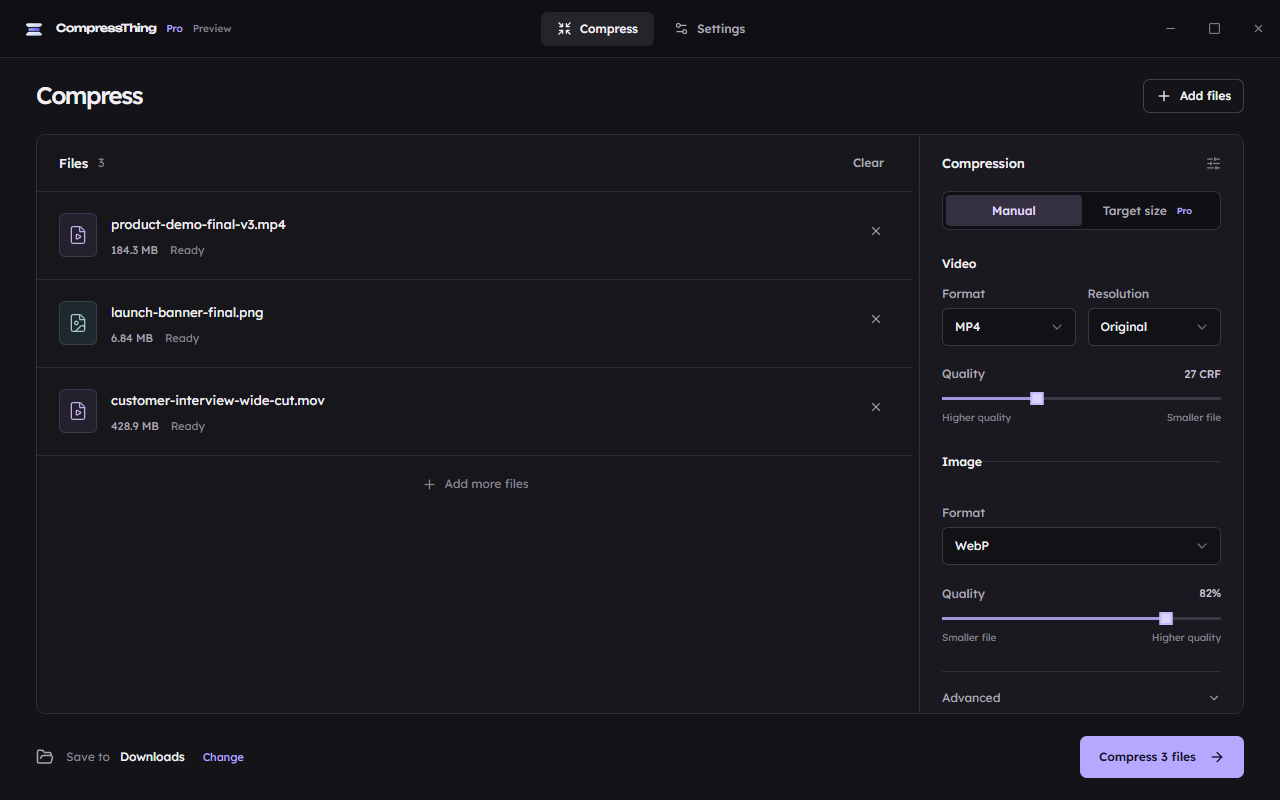
Add your source files
The free CompressThing Microsoft Store download requires Windows 11, x64, and includes the required media tools. Manual compression is free for images and videos; Pro video size targets require a separate license.
Add an image or video to the queue and choose where the output should go. Keep the original until you have checked the exported copy. Compression does not send the media to an online service.
Choose format and quality
Manual image and video compression is available in Free. Choose an output format, quality, speed, and resolution for the destination that will receive the file. Start with one file before processing a large batch.
Lower quality or resolution can reduce size at the cost of detail. Hardware encoding depends on the encoders available on the PC; a CPU fallback is available when a hardware path fails.
Fit a maximum video size
Exact maximum video sizes and destination presets are Pro workflows. In an activated Pro build, choose the destination or custom size limit, then run the job. Manual quality settings alone do not guarantee a file will fit a particular upload limit.
The target-size workflow measures the finished file and may retry with adjusted settings. Wait for a verified result. A failed or cancelled job is not a completed export, even if processing reached a high percentage.
Check the finished copy
Open the exported file and check its picture, audio, duration, and size before sharing it. For a batch, review failed items individually instead of assuming every queued file completed.
If an encode fails, try a compatible format or CPU path and retain the original. The app can prepare a sanitised diagnostic report with encoder and verification details for support.
Use the optional Explorer action
In an activated Pro desktop build, enable Settings → Windows → File Explorer action. Right-click supported media and choose Compress with CompressThing; Windows 11 may place it under Show more options.
This action starts processing with its own defaults and writes a separate copy beside the source. It does not use your saved output folder or current manual settings. Animated image inputs use the still-image pipeline and produce a still image.