
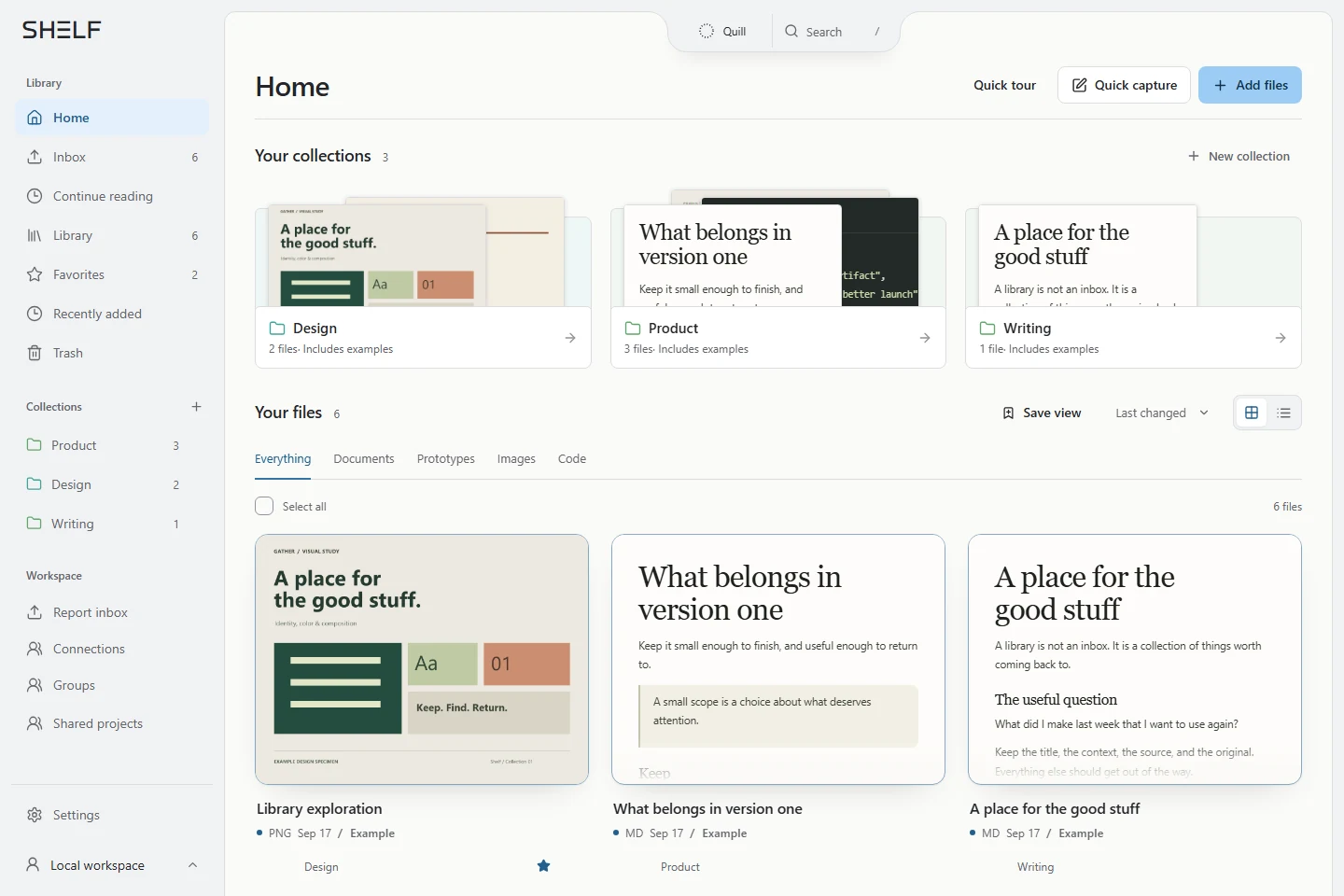
Open your library
Open Shelf and start locally without an account, or connect an optional cloud library through Settings → Account. Local and cloud libraries are separate; choose explicitly which files to copy between them.
In browser-only mode, local files belong to that browser, device, and site address. Opening Shelf on another device will not bring that local library with you.
Save an original
Import a PDF, Markdown, static HTML, text, code, or image file. Shelf keeps the original bytes and creates a reading view around them.
- Choose the file to import and review its title and destination collection.
- Add useful context, tags, or a source so you can find it later.
- Save it, then open it in the reader to check that you imported the intended file.
Read and find saved work
Use collections and tags to narrow the library, or search the file contents and saved context. Open a result to read it and add notes without changing the original.
Static HTML previews block scripts and outside resources. An interactive web app saved as HTML may therefore look different or have inactive controls; download the original when you need the source file.
Keep a revision with its earlier version
When importing a revised file, review any matching-file suggestion and explicitly choose to add a new version. A similar filename is only a suggestion. Choose a separate file when the work is unrelated.
Review the comparison and version name before saving. Retaining the earlier original lets you compare the work later instead of replacing the only copy.
Export a portable backup
Use Settings → Storage & backups to export a backup and keep it outside the browser's storage. Export again after important additions. Clearing site data, changing browsers, or losing the device can make a browser-only library unavailable.
The local service has its own library on the machine. Watched folders require that service to be running; they do not give the hosted browser app access to your filesystem.