
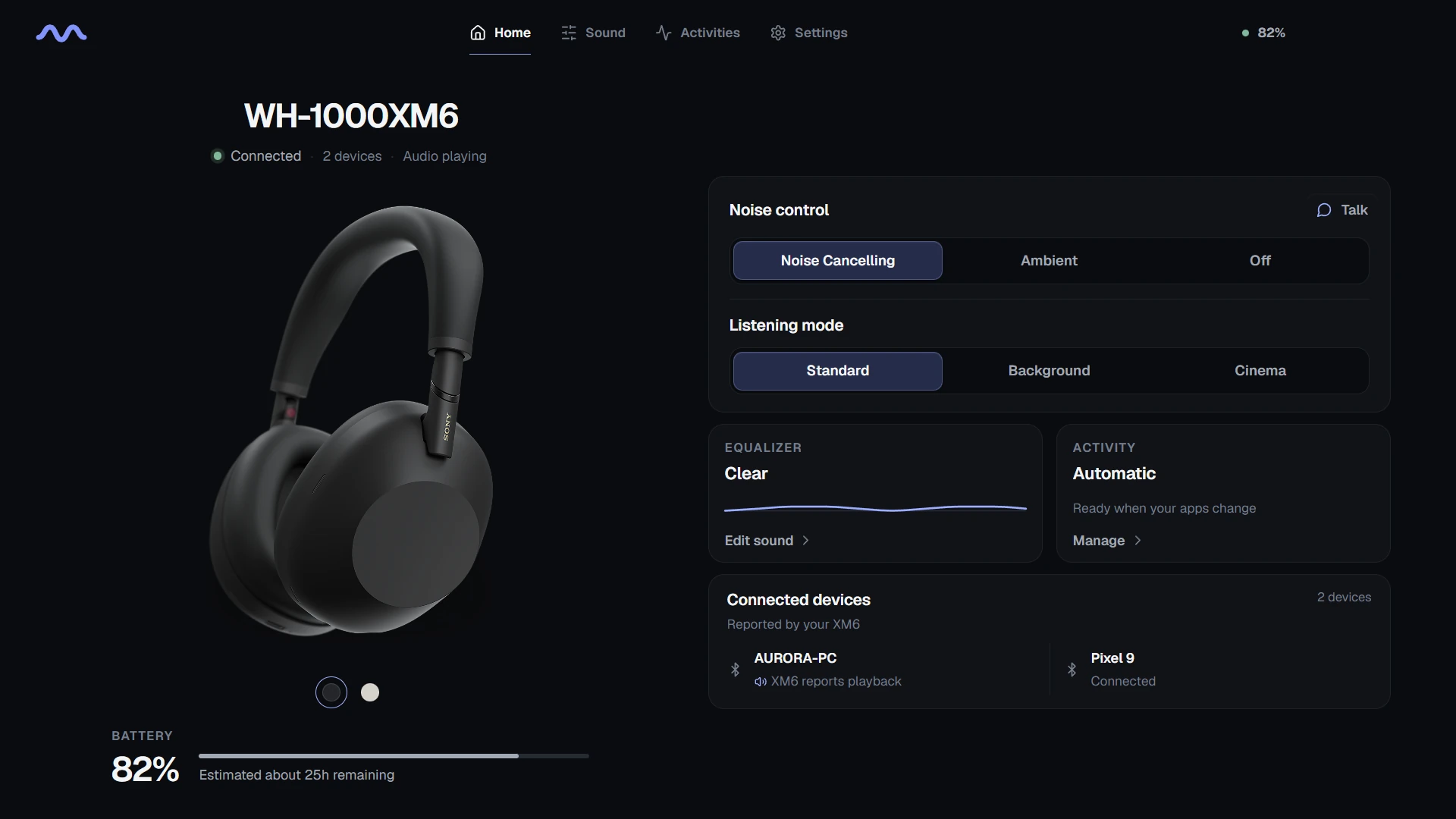
Connect a supported model
Means Audio supports Sony WH-1000XM5 and WH-1000XM6 on Windows 11, 64-bit. Install the free Microsoft Store download; paid features require a separate license. Check the product page for current purchase details.
Pair and connect the headphones in Windows, then open Means Audio and check the detected model and connection state. If the headphones are connected to another device, confirm that Windows has an active connection before changing settings.
Pair XM5 or XM6 with Windows
Charge the headphones and keep them near the PC. Both models enter pairing mode automatically on their first pairing after purchase or initialization. To add another device, the pairing button differs by model.
- For WH-1000XM5, hold the power button for about five seconds. For WH-1000XM6, hold the Bluetooth button for about five seconds or more. Wait for the pairing announcement and repeated double blue flashes.
- In Windows 11, open Settings → Bluetooth & devices, enable Bluetooth, and choose Add device → Bluetooth.
- Select the exact headphone model and complete pairing. Then open Means Audio and check the reported connection.
Change sound settings
Open Sound and use the controls offered for the connected model. XM5 has Clear Bass plus five EQ bands; XM6 has a ten-band EQ. Other options depend on the device's reported capabilities. Change one setting, wait for the device-confirmed state, and listen before changing another.
A disconnected device or unavailable control should not be treated as a successful change. Reconnect the headphones and check the confirmed setting before saving it into your everyday workflow.
Create an application Activity
Activities associate reusable headphone settings with selected Windows applications. Start with one application so you can check exactly when the rule becomes active.
- Open Activities and create an Activity with a recognisable name.
- Select the application and an available trigger, such as the selected app being in front.
- Choose the compatible sound profile and settings you want the Activity to use.
- Save and enable the Activity, then bring the selected app forward and check the confirmed headphone state.
Check a rule that does not apply
Confirm the headphones are connected, the Activity is enabled, and the selected application matches the program you are using. Check the trigger condition: an app being open is different from it being in front or playing audio.
If several Activities use the same app, review their overlap before changing more settings. Include the headphone model, Means Audio version, trigger, and displayed connection state when asking for help.